Fixing the “Blue Screen of Death” (BSOD)
Understand the cause, prevent data loss, and recover your PC with confidence—all without needing a tech expert. The Blue Screen of Death may look serious, but it’s usually a fixable error caused by faulty drivers, corrupt files, or hardware issues. With the right steps, you can troubleshoot and restore your system safely.
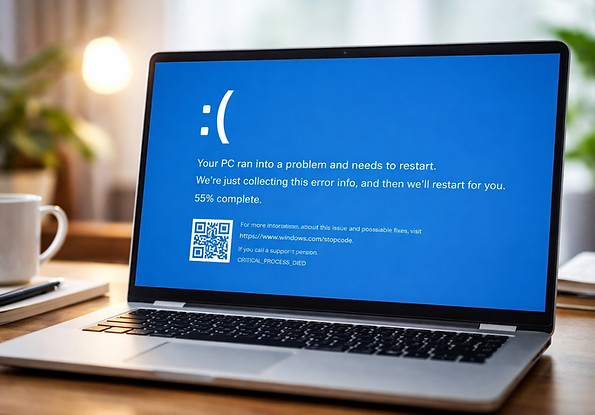
What Is the BSOD?
The Blue Screen of Death is Windows’ way of stopping your system to prevent damage. It usually appears after a critical system error—caused by hardware failure, driver issues, corrupt files, or software conflicts. While the screen looks intimidating, it’s actually a safety feature.
🔍 You’ll often see a STOP code like CRITICAL_PROCESS_DIED, MEMORY_MANAGEMENT, or IRQL_NOT_LESS_OR_EQUAL. These codes help identify the root cause.
Common Causes
-
Outdated or incompatible drivers
-
Corrupt system files or Windows updates
-
Faulty RAM or hard drive issues
-
Third-party antivirus or low-level software conflicts
-
Overheating or hardware failure
How to Fix It (Step-by-Step)
1. Restart in Safe Mode
Safe Mode loads Windows with minimal drivers and services.
-
Hold Shift while selecting Restart from the Start Menu
-
Go to: Troubleshoot > Advanced Options > Startup Settings > Restart > Press 4 for Safe Mode
If BSOD doesn’t appear in Safe Mode, a third-party driver or app is likely the cause.
2. Check for Recent Changes
If the BSOD started after installing new software or updates, roll them back:
-
Settings > Windows Update > Update History
-
Uninstall recent updates or system drivers that may have triggered the issue
Also check Device Manager for yellow warning icons—those devices may be using faulty drivers.
3. Use System Restore
If you created a restore point before the issue began:
-
Go to Control Panel > Recovery > Open System Restore
-
Follow the prompts to revert your system to a working state
4. Scan for Corrupt System Files
Use built-in tools to repair critical files:
-
Open Command Prompt as Admin
-
Run: sfc /scannow
-
Then run: DISM /Online /Cleanup-Image /RestoreHealth
These tools can fix missing or damaged system files that often trigger BSODs.
5. Update All Drivers
Go to Device Manager, right-click each component (especially display, network, audio), and choose Update Driver.
Or, use Windows Update > Advanced Options > Optional Updates to install driver updates.
6. Check Your RAM & Storage
Use Windows Memory Diagnostic:
-
Type mdsched.exe in the Start menu
-
Choose to restart and check for memory issues
Also run chkdsk to check your hard drive:
-
Open Command Prompt as Admin
-
Run: chkdsk /f /r and press Y to confirm on next restart
7. Final Option: Reset Your PC
If the BSOD keeps returning:
-
Settings > System > Recovery > Reset this PC
-
Choose to Keep my files (apps will be removed, but personal files stay)
This is a safe and clean reset that resolves most persistent errors.
Bonus: Decode the Stop Code
Use Microsoft’s official STOP code reference or third-party tools like WhoCrashed to analyze BSOD logs and pinpoint the driver or module that failed.
Final Tips
-
Keep Windows and drivers updated regularly
-
Avoid random third-party driver tools
-
Always create restore points before major updates or installs
-
If hardware is failing (e.g., RAM or SSD), replace it ASAP
🛡️Don’t panic when you see the blue screen—it’s fixable.
Follow these steps, and you’ll often have your system back up and running within minutes—without losing your data.