top of page

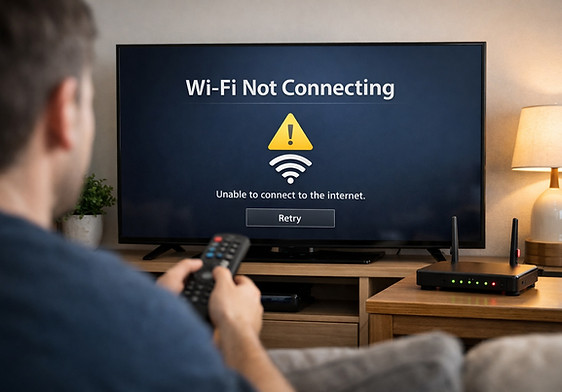
Smart TV Not Connecting to Wi-Fi? Here’s What to Check First

Before you reset everything, try these quick fixes for smart TV Wi-Fi issues—so you can get back to streaming and casting without hassle.

Why Smart TVs Lose Wi-Fi

Smart TVs rely on a stable wireless connection to stream content, download updates, and connect to apps. If your TV isn’t connecting, it’s often due to a simple conflict—like a weak signal, outdated firmware, incorrect settings, or temporary router issues. Before you reset your TV or call support, here’s what to check.

Step 1: Check Your Internet Connection

First, make sure the problem isn’t your Wi-Fi.

  • Test Wi-Fi on another device (like your phone or laptop)

  • Restart your router (unplug for 10 seconds, then plug back in)

  • Check if too many devices are hogging bandwidth

If other devices can’t connect either, the issue is likely your network—not the TV.


Step 2: Power Cycle the TV

Simple but effective.

  • Turn off the TV

  • Unplug it from the wall

  • Wait 30 seconds

  • Plug it back in and turn it on

This clears temporary glitches in the TV’s network module.

Step 3: Reconnect to Wi-Fi

Go to your TV’s network settings and:

  • Forget the current Wi-Fi network

  • Re-enter your Wi-Fi password carefully (check for typos)

  • Connect again and wait 10–20 seconds

If your Wi-Fi password has special characters, try simplifying it temporarily for testing.

Step 4: Move the Router Closer (or the TV)

Distance, walls, and interference can weaken the signal.

  • Try moving the router closer

  • Or use a Wi-Fi extender to boost signal

  • Avoid placing routers behind metal or thick walls

If your TV supports Ethernet, try a wired connection for testing.


Step 5: Update Your TV Firmware

Outdated software can cause connection bugs.

  • Go to Settings > Support > Software Update (varies by brand)

  • If you can’t update via Wi-Fi, check the manufacturer’s site for USB update instructions

Keeping your TV updated improves performance, security, and compatibility.


Step 6: Adjust DNS Settings (Advanced)

Sometimes your TV struggles to resolve DNS (domain name) servers.

  • Go to Network Settings > IP Settings > DNS Settings

  • Change to: 8.8.8.8 (Google DNS) or 1.1.1.1 (Cloudflare)

This can solve slow-loading or failed connections due to DNS errors.

Step 7: Factory Reset (Last Resort)

If nothing else works:

  • Go to Settings > Reset > Factory Reset

  • Follow on-screen prompts

  • Reconnect Wi-Fi during setup

🧼 This erases your settings and apps, so only use this as a last resort.

 Wrap-Up: Keep It Simple

Most smart TV Wi-Fi issues come down to temporary glitches, weak signals, or outdated settings. A quick reboot, reconnect, or signal boost is usually all it takes to get you back to streaming.

bottom of page