top of page

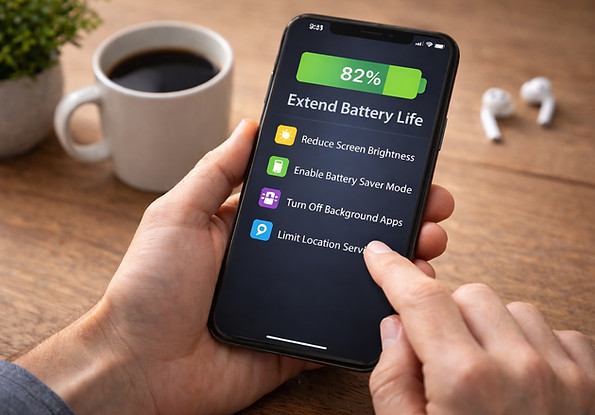
Battery Draining Fast? How to Extend Battery Life on Your Phone

Modern smartphones are powerful—but that power comes at a cost. Background apps, high screen brightness, constant notifications, and system features like Bluetooth or location services can all quietly eat away at your battery life. The good news? You don’t need an upgrade—you just need the right settings.

Why Your Phone Battery Drains Too Fast

Modern smartphones are powerful—but that power comes at a cost. Background apps, high screen brightness, constant notifications, and system features like Bluetooth or location services can all quietly eat away at your battery life. The good news? You don’t need an upgrade—you just need the right settings.

​

Step 1: Check Battery Usage

Start by identifying the culprits:

  • iOS: Settings > Battery

  • Android: Settings > Battery & device care > Battery

You’ll see a breakdown of which apps are draining your battery. Look for any that are running in the background more than expected.

 Pro Tip: If social media, streaming, or email apps are near the top—consider limiting their background activity.

​

Step 2: Lower Screen Brightness & Timeout

The display is usually the #1 battery drainer.

  • Reduce screen brightness or turn on Auto-Brightness

  • Set screen timeout to 30 seconds or 1 minute

  • Use Dark Mode, especially on OLED screens

​

Step 3: Turn Off Unused Features

Disable power-hungry features when not needed:

  • Wi-Fi, Bluetooth, or Mobile Hotspot

  • Location Services / GPS

  • 5G (if available, switch to LTE when not needed)

On iOS: Settings > Privacy > Location Services
On Android: Settings > Location > App permissions

​

Step 4: Close or Restrict Background Apps

Apps running in the background can wake your phone frequently.

  • Manually close unused apps

  • iOS: Disable Background App Refresh (Settings > General)

  • Android: Put unused apps to sleep (Battery settings > Background usage limits)


Step 5: Enable Power Saving Modes

Use built-in battery-saving tools:

  • iOS: Low Power Mode (Settings > Battery)

  • Android: Power Saving Mode (Settings > Battery & device care)

These modes limit background processes, reduce refresh rates, and disable visual effects to conserve energy.


Step 6: Manage Notifications

Every time a notification lights up your screen, it drains power.

  • Disable unnecessary alerts from apps

  • Mute group chats or high-traffic apps like Twitter, Slack, etc.

  • Use Focus Mode or Do Not Disturb during off-hours

​

Step 7: Keep Your OS & Apps Updated

Updates often include battery optimizations.

  • Go to Settings > Software Update

  • Keep apps updated in the App Store or Google Play

​

Bonus Fixes

  • Restart your phone weekly to clear memory and glitches

  • Calibrate your battery (fully drain, then charge to 100%) once a month

  • Avoid extreme temperatures—both heat and cold damage battery health

  • Replace your battery if it’s more than 2–3 years old and performance continues to degrade

​

Wrap-Up: Make Your Battery Work Smarter

With a few smart settings and habits, you can easily stretch your phone’s battery to last the entire day—or longer. Regular optimization keeps your phone responsive, your apps in check, and your battery healthier over time.

​

bottom of page